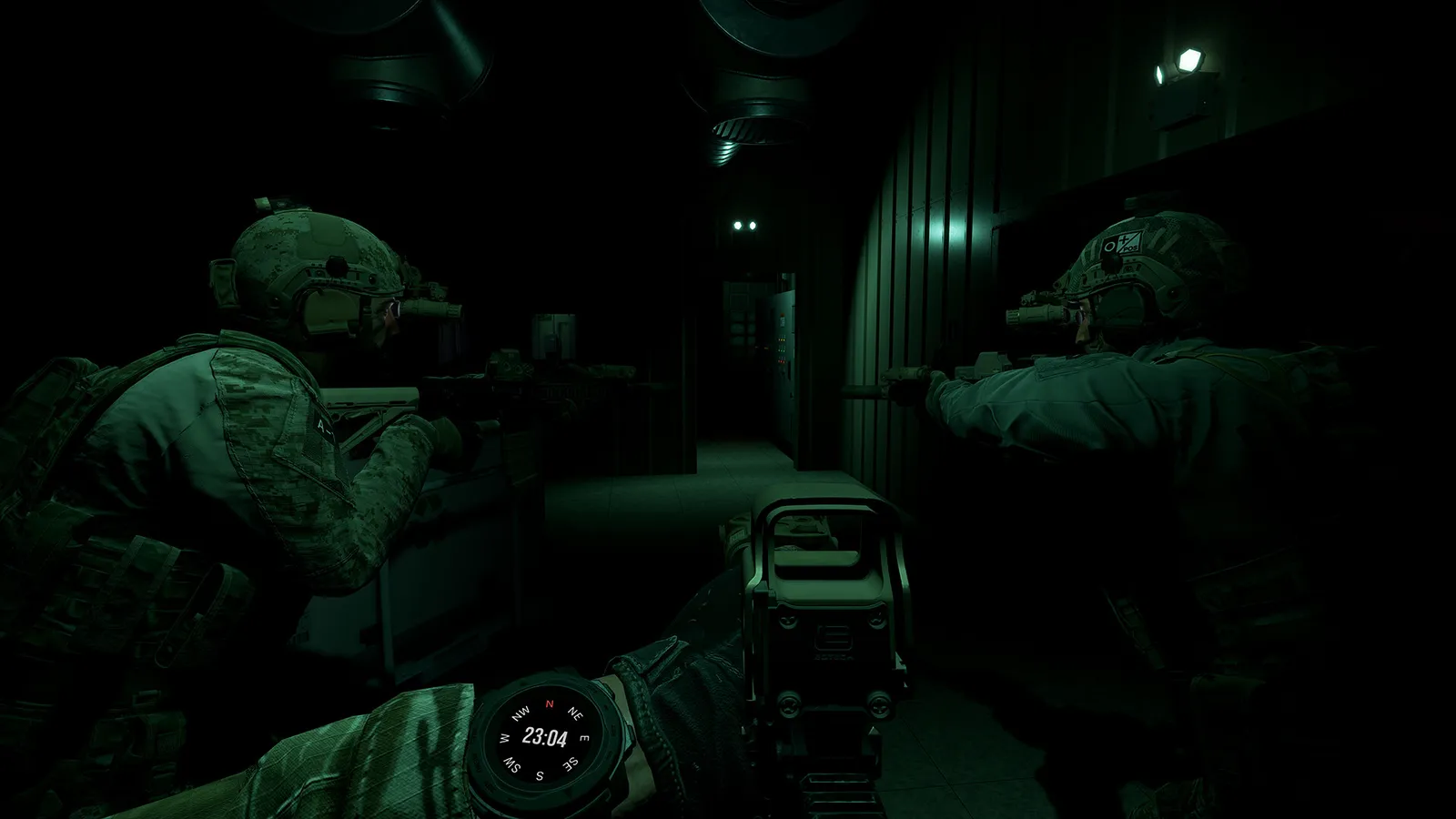
Ground Branch dedicated server setup: SteamCMD install (appid 476400), UDP ports 7777 and 27015, command line options, config files, admin and troubleshooting.
GROUND BRANCH Dedicated Server — Full Setup, Ports & Configuration
GROUND BRANCH is free to host anywhere, for anyone who owns the game — there's no license fee and no built-in hosting wall. You can run a dedicated server from your own PC, a VPS, or rent from one of the official partners listed on the official rent-a-server page. This guide covers the whole process: SteamCMD install, the ports (UDP 7777 and 27015), command line options, the config files that control everything, and how to admin the box.
Here's what you'll learn:
- What you need before hosting (ports, Windows, SteamCMD)
- Installing the standalone server with SteamCMD (appid 476400)
- Starting the server with DedicatedServer.bat or the command line
- Every command line option that matters (MaxPlayers, MaxAI, missions, time of day)
- Server.ini / Admin.ini / Vote.ini / MapList.ini configuration
- Admin setup, maplists, and troubleshooting common failures
Official resources: Steam guide: Dedicated Server Help · Official rent-a-server page · PCGamingWiki · Steam store page
Before You Start: Ports & Requirements
The community-maintained Dedicated Server Help guide — the guide the official FAQ points players to — is the canonical reference. The essentials:
- Ports: open UDP 7777 (game) and UDP 27015 (query) in your Windows firewall and router. Both must be forwarded to the server machine.
- Windows only: running a dedicated server is officially supported on Windows only at this time. Linux support is planned but not yet available; the server may run under Proton but it's unverified — don't build a production box on it yet. Mac is not planned.
- A second port pair (e.g. Port=7779 QueryPort=27017) is used only if you run multiple instances on one IP — each instance needs its own ports.
- Players connect by IP — either in the server browser (dedicated servers appear there) or by direct IP via console: open the console (
~,*orShift+6) and typeopen <IP>(PCGamingWiki). This is also how you connect from the same machine hosting the server.
7777 alone makes the server invisible to the browser and unreachable by direct connect. The query port (27015) is what the server list pings — if it's closed, players see the server but can't join (or don't see it at all).
Installing the Server with SteamCMD
The standalone dedicated server is a separate SteamCMD app (appid 476400) — it does not require (or include) the full game client. Install SteamCMD from the Valve developer wiki, then run:
steamcmd +login anonymous +force_install_dir c:\gbserver +app_update 476400 +exit
Replace c:\gbserver with your install directory. First run downloads the whole server package; re-running the same command updates it. There's no Steam-download alternative for the server — SteamCMD is the supported path.
Starting the Server
Two ways, both documented in the Dedicated Server Help guide:
Easiest — the batch file. The full game install includes <Steam Library>\steamapps\common\Ground Branch\DedicatedServer.bat, which locates the server binary automatically and restarts the server if it crashes. You can copy this file to your server directory and run it.
Manual — the command line. The binary is GroundBranchServer-Win64-Shipping.exe in Binaries\Win64. The recommended minimal invocation:
GroundBranchServer-Win64-Shipping.exe ?MaxPlayers=8?MaxAI=30 MultiHome=X.X.X.X Port=7777 QueryPort=27015 -log
Putting MaxPlayers and MaxAI on the command line sets them globally, overriding admin commands, votes and game settings. Startup order matters: if a maplist exists the server uses it; otherwise it uses whatever map/mission is on the command line (e.g. SmallTown?Mission=IntelRetrieval); if neither exists it falls back to "Server Default", which prompts the admin to build a maplist.
Command Line Options & Switches
Options are prefixed with ? and set with =; switches use -. Full table from the server guide:
| Option | What it does |
|---|---|
Mission= |
Required with a map. Missions per map include Deathmatch, IntelRetrieval, TeamElimination, TerroristHunt, Uplink (see GroundBranch\Content\GroundBranch\Mission) |
MaxPlayers= |
8–16. Hard limit is 16; 8 for co-op, 16 for PvP is the recommendation |
MaxAI= |
0–50. 0 disables co-op modes effectively |
TimeOfDay= |
Military time 0000–2400 |
TimeLimit= |
Minutes until the map changes |
RoundTime= / ReadyCountdownTime= / PreRoundWaitTime= / PostRoundWaitTime= |
Round pacing (minutes/seconds, with minimums) |
OpForCount= / Difficulty= |
AI count and difficulty (1–4, 0 = custom) for Intel Retrieval / Terrorist Hunt |
SpectateFreeCam= / SpectateEnemies= / SpectateForceFirstPerson= |
Spectator permissions (0/1) |
MultiHome= |
Bind to a specific IP (multi-IP hosts only) |
Port= / QueryPort= |
Override the ports for multi-instance setups |
-log / Log=<file> |
Open/redirect console log |
Map names available for maplists: 747, Arena, Arena2, City, Creek, Depot, Depot_Compound, Paintball, PowerStation, RunDown, SmallTown, StorageFacility, Tanker (V1.0 renamed RunDown to Hospital and rebuilt several maps — see the V1.0 release notes for the new map lineup).
MapList=/Game/GroundBranch/Maps/SmallTown/SmallTown?Mission=/Game/GroundBranch/Mission/SmallTown/IntelRetrieval?opforcount=30?difficulty=2?roundtime=60?timeofday=0800?timelimit=60?readycountdowntime=60 — one line per map, copied under [/script/rbzookeeper.zkmaplist] in MapList.ini.
Server Configuration Files
All .ini files live in GroundBranch\ServerConfig (e.g. C:\Program Files (x86)\Steam\steamapps\common\Ground Branch\GroundBranch\ServerConfig\). They're generated automatically on first start if missing. Format is key=value, comments use ;.
- Server.ini —
ServerName(64 chars max),ServerMOTD(512 chars max, supports<br>,<b>,<h1-3>),ServerPassword,MaxPlayers(if not set on the command line). - Admin.ini — admin groups and members:
Admins=(Name="JoeBlow",UniqueId="12345678901234567",ContactInfo="",Group="SuperAdmin"). The:0suffix older guides mention is no longer required. SuperAdmin can do everything; a Moderator group can kick, ban or change maps. - Vote.ini —
VoteDuration,VoteSucceededTimeout,VoteFailedTimeout,MinPlayers(minimum players before voting unlocks), andVotingCommands=lines (changemap, nextmap, kick…). - MapList.ini — rotation. Easiest via the admin menu; manually it's a
[/script/rbzookeeper.zkmaplist]section with oneMapList=line per map+mission combo, as above.
Admin & Server Management
On first startup, if no admins are configured, the server generates AdminSetupPassword.txt with a unique one-time password (also printed to the console). Connect to your server, open the console, and run:
admin setup <password>
That promotes you to SuperAdmin. From then on the admin menu (available via the Esc-menu admin button, F8, or typing admin in console) gives you: server commands (changemap, ban, kick), maplist creation/editing, server name/MOTD/max players/password, and admin management.
In-game host admins (listen servers via Host Game) use the same admin panel; the official FAQ documents admin from the console and the Esc › Admin Panel route. Note that listen servers were temporarily restricted after V1.0 while the team fixed networking issues (per PCGamingWiki) — for anything reliable, run a real dedicated server.
Troubleshooting & Hosting Options
- Server won't start: the server needs DirectX and MSVC runtime on a full Windows install — a command-line-only Windows Server core won't do, per the community guide's notes.
- Maplist "not working": the server guide's comments flag that some map names changed in recent updates — verify mission paths exist under
GroundBranch\Content\GroundBranch\Missionand use the admin menu to regenerate. - Mods not syncing: check
modding.ini; wait for the mod sync step in the console before declaring it broken. - Need support? The official FAQ points to the #server-support channel on the official Discord, and to the rent-a-server page listing trusted partners (Blue Fang Solutions, PingPerfect and Citadel Servers) if you'd rather not self-host.
- Joining: browser empty? Use direct connect — console
open <IP>. Our multiplayer guide covers the joining side in full.
Frequently Asked Questions
How do I set up a Ground Branch dedicated server? Install SteamCMD, run steamcmd +login anonymous +force_install_dir c:\gbserver +app_update 476400 +exit, forward UDP 7777 and 27015, then start GroundBranchServer-Win64-Shipping.exe (or DedicatedServer.bat) with your map/mission options.
What ports does Ground Branch use for dedicated servers? UDP 7777 (game) and UDP 27015 (query). Both must be open in the firewall and router; a second instance uses a second port pair.
Can I run a Ground Branch server on Linux? Not officially — only Windows is supported for servers right now. Linux server support is planned; the game client can run under Proton/Steam Play but the server is unverified there.
How do I become admin on my Ground Branch server? On first run the server generates an AdminSetupPassword; connect in-game, open the console and type admin setup <password>. After that, the admin menu (F8) handles everything.
How do I change the map rotation? Use the admin menu (easiest) or edit GroundBranch\ServerConfig\MapList.ini with one MapList= line per map under [/script/rbzookeeper.zkmaplist]. The server picks up the maplist on next map change or restart.
Related Guides
- Ground Branch Multiplayer — Co-op, PvP & How Many Players
- Ground Branch System Requirements — Can My PC Run It?
- Ground Branch Best Settings — Performance & FPS Fixes
- Ground Branch Missions & Modes — Every Game Mode Explained
- Ground Branch Beginners Guide — How to Play & First Hour
- Ground Branch Tactics Guide — Squad Movement & Positioning
Last updated: August 14, 2026.
More GROUND BRANCH Guides
Ground Branch missions and modes: the Operations campaign Prologue, PvE quick missions, PvP modes, training areas, every map, and server mission setup.
Ground Branch has official mod support: Steam Workshop, the UE4 Mod Kit SDK, and hundreds of mods — weapons, missions, game modes. Install steps + top mods.
Ground Branch multiplayer guide: co-op and PvP modes, 16-player servers, the Ready Room, VOIP, server browser, hosting and dedicated servers with ports.
How GROUND BRANCH multiplayer works: 16-player servers, 8-player co-op, server browser (no matchmaking), joining friends, ping, and crossplay.
Ground Branch realism mechanics: no minimap, no HUD ammo, muzzle-origin ballistics, zeroing, limb damage, first aid, weapon positions and arm strength.
Ground Branch release date: V1.0 launched July 16, 2026 after 8 years of Early Access. Full EA timeline, platforms, price, and the 2026–2027 update roadmap.
Honest GROUND BRANCH review after V1.0: all-time Steam rating Very Positive (~84%), recent reviews Mostly Negative. Pros, cons, price, verdict.
GROUND BRANCH squad tactics for co-op and PvP: fireteam roles, movement formations, sectors of fire (AOR), comms discipline and contact drills that win rounds.