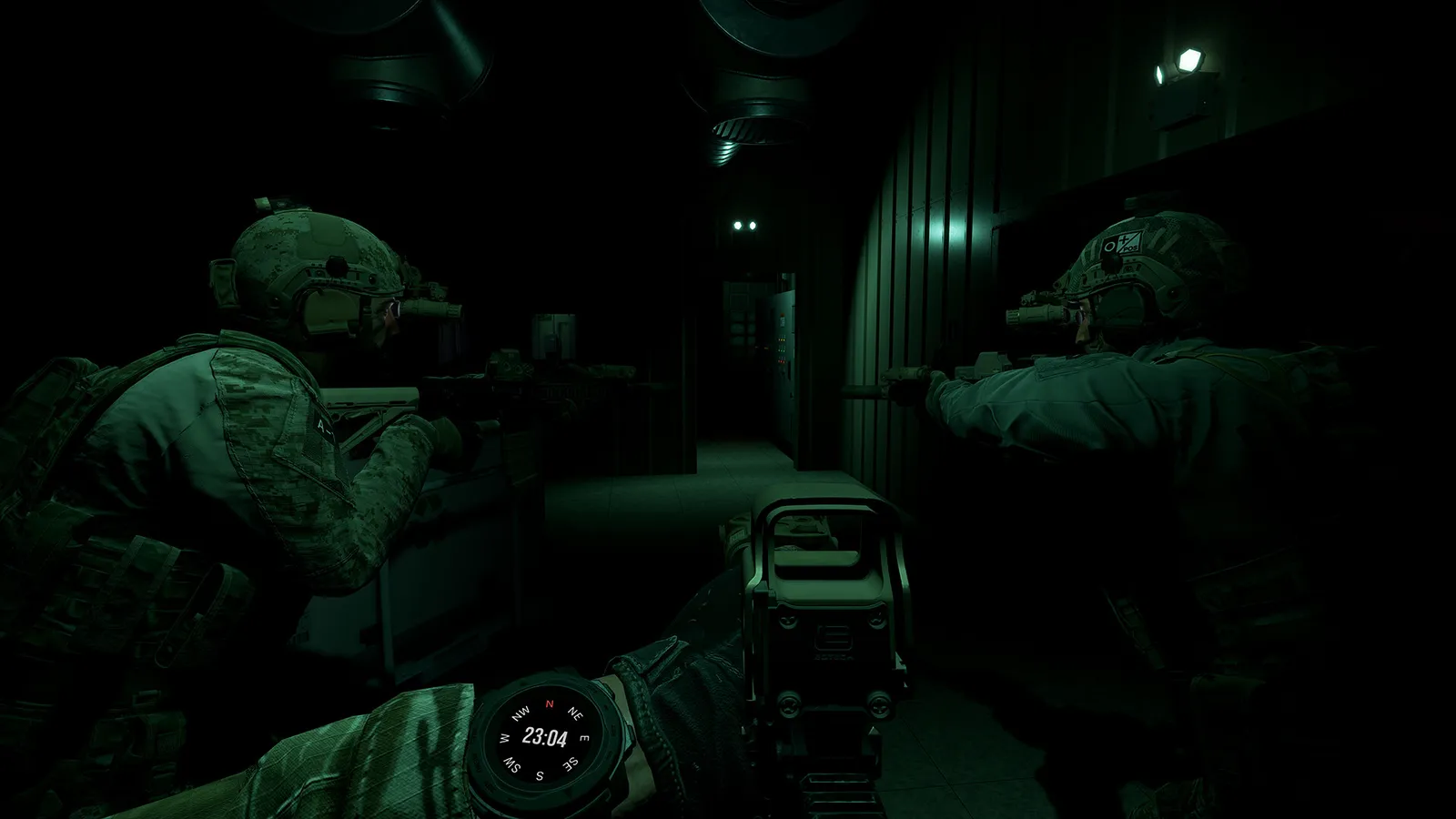
Ground Branch best settings for V1.0: video options, DLSS 3.7 and frame generation, FPS-boosting console commands, sensitivity, and stutter/crash fixes.
GROUND BRANCH Best Settings — Graphics, DLSS & FPS Fixes (V1.0)
GROUND BRANCH is built on Unreal Engine 4 and it is not perfectly optimized — even on strong PCs, the dense outdoor maps (Power Station, Airbase, Tanker) and PIP scopes can cut your frame rate in half. The good news: the right settings buy back a lot of FPS without wrecking visibility, and V1.0 added DLSS 3.7 with frame generation. This guide walks through the video settings that matter, the console commands that squeeze out more frames, and the sensitivity setup that fits the game's deliberate aiming.
Here's what you'll learn:
- Which graphics options cost the most FPS (and which to drop first)
- DLSS 3.7 and DLSS frame generation — when to use them
- Console commands and engine.ini tweaks for low-end PCs
- Sensitivity, FOV and aim settings tuned for GROUND BRANCH's mechanics
- Stutter, crash and config fixes (including the famous "clear your config" fix)
Official resources: Steam store page · PCGamingWiki · Official FAQ · V1.0 Hotfix 1 notes
Best Video Settings for Performance
The community's V1.0 performance guide (Steam guide, updated for 1.0) is the reference here. Settings with the biggest FPS impact:
- Screen Space Reflections (SSR) — huge cost, drop to low or off.
- Shadows — huge cost. Medium is the sweet spot; low looks flat but wins frames.
- Screen Space Global Illumination (SSGI) — huge cost, drop to low or off.
Fairly big impact: Effects and Post Processing. Smaller impact: Foliage (set Medium — Low looks terrible, and anything above Medium barely improves it). Textures barely cost FPS but eat VRAM — setting them too high can cause "out of memory" crashes, so keep them at a level your GPU's VRAM can hold.
Two settings matter specifically for snipers: View Distance Quality and Detail Mode — keep these high if you hold long sightlines. And if you get frame drops when scoped, lower the PIP Scope Resolution Scale — the picture-in-picture scope renders a second full view, which is expensive.
The official FAQ points at an empty or absurdly high max-frame-rate field as a cause of lag/rubberbanding even on low-ping servers. Set a frame cap slightly below what your PC can sustain (e.g. 120 on a 144 Hz monitor) for smooth frame pacing.
DLSS 3.7 & Frame Generation
GROUND BRANCH ships with DLSS 3.7 upscaling and DLSS Frame Generation (PCGamingWiki). There is no native ray tracing or HDR in V1.0, so these are pure raster settings:
- Turn DLSS on at Quality or Balanced if you're below your refresh-rate target at native res. On a GTX 1060 (the minimum spec) DLSS Quality is the difference between 45 and 70+ FPS on Small Town.
- DLSS Frame Generation helps most on high-refresh monitors — it smooths motion but can add input latency feel; for a game where you hold corners and wait for heads, latency is a real concern. Many competitive players leave FG off and rely on DLSS upscaling alone.
- TAA (the native anti-aliasing) causes ghosting and blur in motion and especially through scopes; the "TAA Current Frame Weight" option in Advanced Settings trades jitter against blur. If DLSS isn't available to you, TAA + a bit of sharpening is the fallback — see the console tweaks below.
- Anti-aliasing options are FXAA (cheap, blurry) and TAA (better, pricier) per PCGamingWiki.
Console Commands for More FPS
Open the console (~, * or Shift+6) and enter these — they persist only for the session, but the up/down arrows recall them next time:
r.DistanceFieldAO 0
r.AmbientOcclusionLevels 0
r.Fog 0
r.DepthOfFieldQuality 1
r.MotionBlurQuality 0
r.BloomQuality 0
The first three are the big winners (distance-field AO and fog are expensive on the outdoor maps); the rest clean up blur and bloom. To make them permanent, edit %LOCALAPPDATA%\GroundBranch\Saved\Config\WindowsNoEditor\engine.ini — the performance guide publishes a full [SystemSettings] block (SSR/SSGI/shadow/fog quality = 0, material quality = 0, etc.). Save a backup first, and note that the file's settings stop being saved from the in-game menu once you make it read-only.
The official FAQ's #1 fix for broken controls, loadouts, settings and assets after an update: delete everything in %LOCALAPPDATA%\GroundBranch\Saved\Config\WindowsNoEditor. V1.0 changed a lot of systems — if a slider does nothing or your loadout resets, wipe the config and rebuild.
Best Sensitivity & Aim Settings
GROUND BRANCH rewards deliberate aiming — a slow, steady sight picture beats flick shots because of weapon sway and arm strength (see the realism mechanics guide). Practical setup:
- ADS sensitivity should feel slightly lower than your other FPS games — target accuracy matters more than 180° turns. Start at your usual value and drop 10-15% if you overshoot micro-corrections at range.
- Field of view: 90-100 is the community sweet spot — wide enough to clear corners without fisheye. FOV settings exist per PCGamingWiki.
- Use the Ready Room firing range to test: targets are adjustable, and the V1.0 range added distance controls (Hotfix 1 fixed the range's distance buttons sticking). Zeroing, not sensitivity, is what fixes "shots landing low" — see our weapon customization guide.
- Night maps change everything: with NVG on, a visible laser/IR laser aiming point matters more than raw mouse speed.
Stutter, Crash & Other Fixes
- Stutter on scopes: verify game files (Steam › Properties › Local Files) — Hotfix 2 notes players reported improved performance, particularly with PiP scopes, after verifying.
- Crash at launch with DX12: Hotfix 1 temporarily removed the DX12 launch prompt because DX12 was crashing; the game now defaults to DX11. You can force DX12 via
-dx12in Steam launch options, at your own risk (Hotfix 1 notes). - Out of memory crashes: lower texture quality (VRAM overflow) and make sure you have enough RAM — V1.0 minimum is 16 GB, recommended 32 GB (system requirements guide).
- Razer Cortex and other "game boosters" are known to fight with the game's engine per the community guide — disable them.
- Disk space: V1.0 shipped at nearly 100 GB on disk; Hotfix 1 cut it to 39.4 GB, so a reinstall after the hotfix can recover a lot of space (and occasionally fixes weird asset bugs).
Frequently Asked Questions
What are the best graphics settings for Ground Branch? Drop SSR, Shadows and SSGI first (biggest FPS cost), keep Textures and View Distance high, set Foliage to Medium, and enable DLSS at Quality if you're under your refresh target. Cap the frame rate just below your monitor's max.
Does Ground Branch support DLSS? Yes — DLSS 3.7 with DLSS Frame Generation (per PCGamingWiki). No native ray tracing or HDR in V1.0. FSR support is not yet confirmed in V1.0; the official FAQ lists it as planned.
How do I fix low FPS in Ground Branch? Lower SSR/Shadows/SSGI, use the console commands (r.Fog 0, r.AmbientOcclusionLevels 0, r.DistanceFieldAO 0), cap your frame rate, lower PIP Scope Resolution Scale if scoped drops bother you, and verify game files.
What is the best sensitivity in Ground Branch? Start from your usual FPS sensitivity and lower ADS sensitivity slightly — the game punishes overshoot with weapon sway. Test at the Ready Room firing range.
Why does Ground Branch stutter or crash? Common causes: DX12 mode (switch back to DX11), textures too high for your VRAM, stale config after updates (clear the config folder), and leftover "booster" software. Verify game files after any patch.
Related Guides
- Ground Branch Beginners Guide — How to Play & First Hour
- Ground Branch Review — Is It Worth It After 1.0? (2026)
- Ground Branch Missions & Modes: Operations, PvE, PvP
- Ground Branch Updates — V1.0, Hotfixes & 2026 Roadmap
Last updated: August 14, 2026.