How IRON NEST runs on Steam Deck: ProtonDB Platinum status, best settings (TDP, FSR, resolution), battery life, controller support, and known issues.
IRON NEST Steam Deck — Best Settings, Performance & Compatibility (2026)
Yes, IRON NEST runs on Steam Deck — it's not officially "Verified" by Valve yet, but the community reports are strong (ProtonDB rates it Platinum, meaning it runs well out of the box), and the developers shipped Deck-focused improvements around launch. This guide covers compatibility, the best settings, and what to expect on battery.
Here's what you'll learn:
- Steam Deck compatibility status (Verified? ProtonDB?)
- The best performance settings (TDP, FSR, resolution)
- Battery life expectations
- Controller support on Deck
- Known issues and fixes
Official resources: Steam store page · IGN game page · Official site
Does It Run on Steam Deck?
Yes — well. While the game has no official "Steam Deck Verified" badge yet, community testing on ProtonDB rates it Platinum with reports like "no tinkering, works out of the box" (Proton 10.0-3). The developers also shipped Deck-focused updates around launch (performance optimization, memory improvements, better Steam Input support, and UI readability for small screens) in response to demo-era feedback.
Valve hasn't stamped it Verified as of August 2026, so you may see the "Playable/Unknown" label. The practical reality: ProtonDB Platinum + dev fixes + community guides = a comfortable Deck experience. Just apply the settings below.
Best Steam Deck Settings (60 FPS Preset)
Community benchmarking (across LCD and OLED Deck models) converges on this preset:
| Setting | Recommendation |
|---|---|
| SteamOS TDP Limit | 11W (battery life during long plotting sessions) |
| Refresh / FPS cap | 60Hz/60 FPS — or 40Hz/40 FPS for max battery |
| Resolution | 1280×800 native |
| Upscaling | FSR 2.0+ at Balanced or Quality |
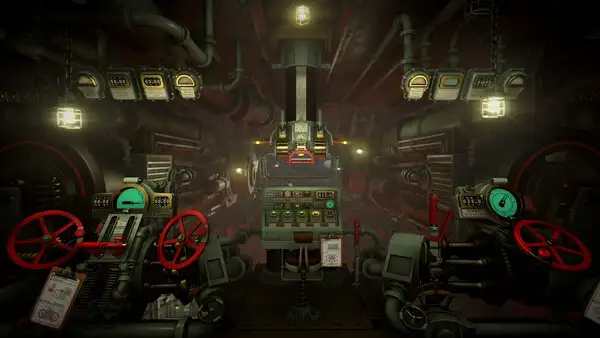
| Shadow quality | Low (big performance gain, minimal visual loss inside the turret) |
| Volumetric smoke/effects | Medium (High tanks FPS badly) |
| Texture quality | High (the Deck has VRAM to spare for crisp dials) |
| Hydraulic physics accuracy | Medium (reduces CPU load during recoil) |
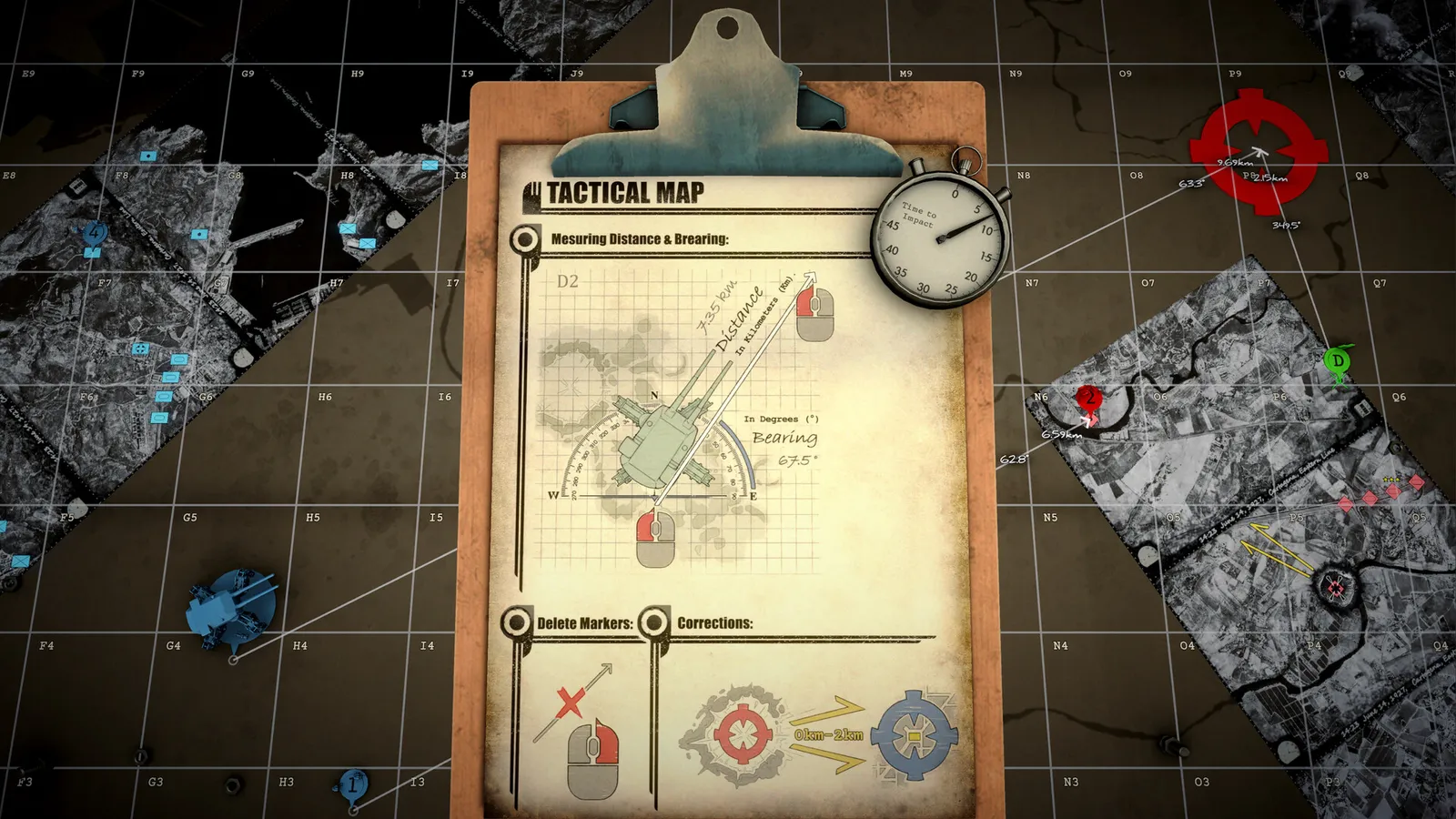
The game is CPU-heavy (ballistic calc, procedural objectives, physics), so the TDP + shadow/volumetric settings matter more than raw resolution. The interior is mostly static — you don't need high settings to read dials.
40 FPS Battery-Saver Alternative
If you want longer sessions: cap at 40Hz/40 FPS and drop volumetric effects to Low. The game is a slow, deliberate sim — 40 FPS is entirely comfortable, and you'll trade the extra smoothness for noticeably more battery.
Battery Life
Realistic expectations (community-tested):
- At 11W TDP / 60 FPS: roughly 1.5–2.5 hours on a full charge, depending on model (OLED does better than LCD).
- At 40Hz / lower TDP: pushes toward 3+ hours — plenty for a few campaign missions.
- The long-mission memory leak seen in early demos on some systems (mostly Linux desktop) has been addressed for Deck by the launch-era optimization patches.
Controller Support on Deck
IRON NEST lists full controller support on Steam (with DualShock/DualSense support listed too). On Deck:
- Steam Input layouts work out of the box after the launch-era controller improvements.
- Use the touchpad for map plotting — precise coordinate marking and the drafting compass are far easier with a mouse-like surface than with analog sticks. Community consensus: touchpad + gyro (optional) for plotting, sticks for camera.
- Buttons/levers can be mapped to comfortable bindings in the Deck's controller settings if defaults feel awkward.
Ironically, IRON NEST's deliberate pacing and mostly-static interior make it better on a handheld than most sims — sessions map perfectly to "one mission on the couch." Set 40 FPS, plug in headphones for the radio chatter, and it's a great portable experience.
Known Issues & Fixes
- Not Verified badge — cosmetic; ProtonDB Platinum and dev fixes cover it.
- Colour saturation — some players reduce saturation slightly on the Deck's screen for long map-reading sessions.
- MSAA — community reports on Proton note MSAA options may not behave identically to Windows; use FSR instead.
- Updates may reset controller layouts after patches — re-apply your bindings if they vanish.
Frequently Asked Questions
Does IRON NEST work on Steam Deck?
Yes — ProtonDB rates it Platinum (runs well out of the box with Proton), and the developers shipped Deck-focused performance/controller improvements.
Is IRON NEST Steam Deck verified?
Not officially Verified by Valve as of August 2026, but community-tested as effectively playable. Expect a "Playable/Unknown" badge.
What are the best Steam Deck settings for IRON NEST?
1280×800 native, FSR 2.0 Balanced/Quality, 11W TDP, 60Hz (or 40Hz for battery), shadows Low, volumetric Medium, textures High, hydraulic physics Medium.
How long does IRON NEST run on Steam Deck battery?
About 1.5–2.5 hours at 60 FPS/11W; 3+ hours at 40Hz with lower TDP.
Does IRON NEST support controllers?
Yes — full controller support listed on Steam, with improved Steam Input support on Deck. Use the touchpad for map plotting precision.
Related Guides
- IRON NEST Achievements & Medals Guide — 33 Steam Achievements + Every Gold Medal
- IRON NEST Beginner's Guide — How to Play, Controls & First Missions (2026)
- IRON NEST Dead Reckoning — Mission 9 Walkthrough & Tear Shell Strategy
- IRON NEST Walkthrough — Mission 2, 3 & Dead Reckoning
- IRON NEST Missions Guide: All 15 Campaign Missions
More IRON NEST: Heavy Turret Simulator Guides
IRON NEST mods: the MelonLoader community, installing mods, the VR/Co-op/PvP multiplayer mod, the IronNestFCS fire-control mod, and mod support status.
IRON NEST platforms explained: PC-only on Steam, GOG and Epic, no Xbox/PS5 version yet, Steam Deck Verified status, cloud saves, and cross-store differences.
An honest IRON NEST review: gameplay, moral-choice storytelling, how it compares to PVKK, who it's for, community reception, and whether it's worth $19.99.
Where IRON NEST stores saves (AppData\LocalLow\IronNestTeam\IronNest), Steam Cloud backup, transferring progress, and fixing the Patch 1.0 save corruption bug.
Every IRON NEST shell type explained: HE, AP, HCHE, SMK, STAR, chemical (PGAS/TGAS), PRPG, White Phosphorus and Atomic — plus tier ratings and when to use each.
IRON NEST music explained: the record player on your desk, the military-march style, whether an official OST exists, and how to play vinyl in the turret.
IRON NEST: Heavy Turret Simulator minimum and recommended system requirements, download size, Steam Deck support, and laptop/iGPU tips — can your PC run it?
Every IRON NEST patch so far (Patch 1.0 fixes), update cadence, the 200,000-player launch, and the roadmap — what's confirmed coming to the heavy turret sim.