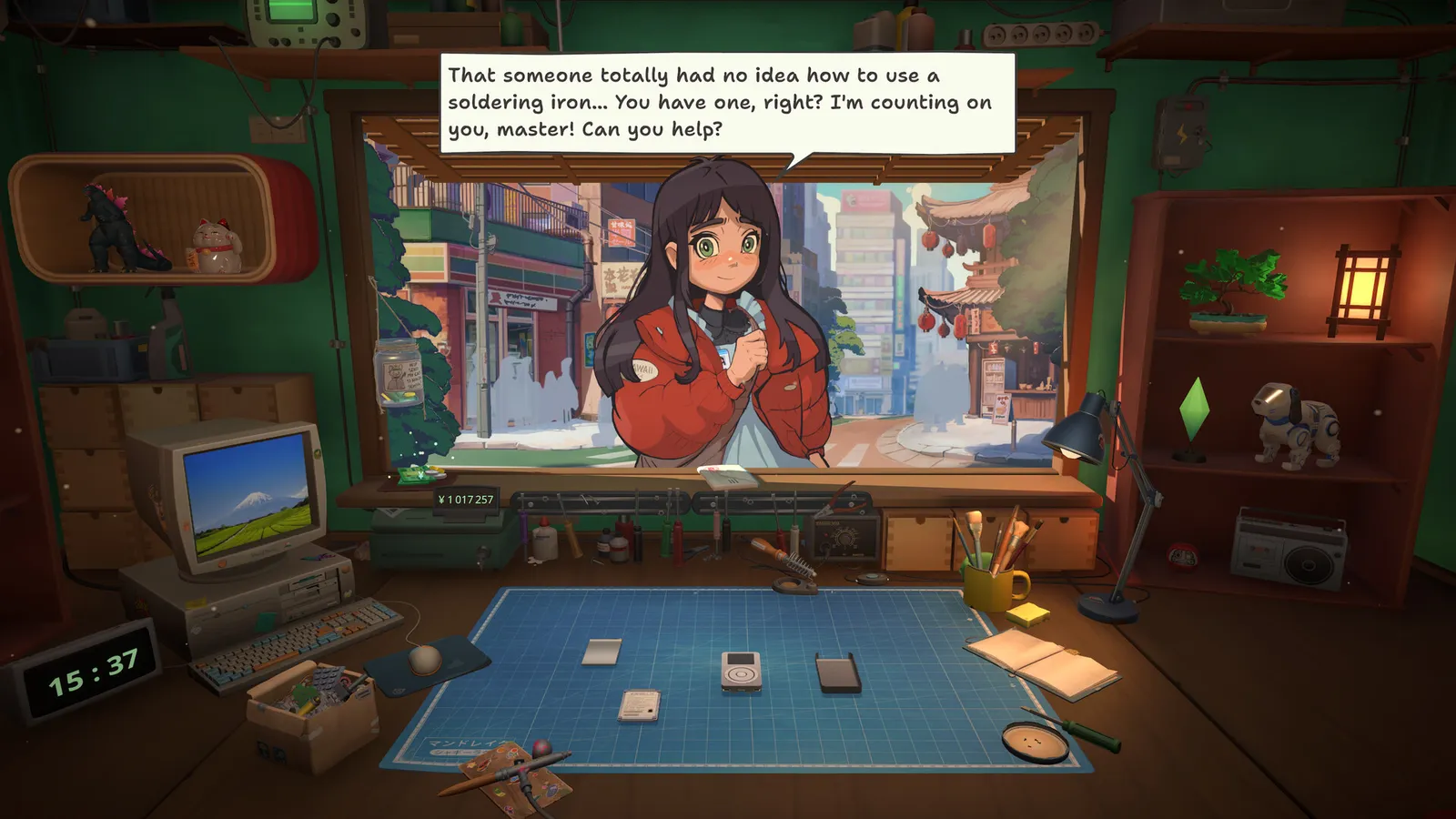
Where ReStory: Chill Electronics Repairs stores your save, how to back up safely and how Steam Cloud sync works — with exact community-verified Windows paths.
ReStory Save File Location & Backup Guide
ReStory: Chill Electronics Repairs keeps everything locally on your PC, which makes backups quick — and worth doing. Several hours of progress can disappear surprisingly fast if a patch goes wrong or Windows decides to misbehave, so this guide covers the exact save paths, the backup routine, and how Steam Cloud fits in. It's part of our main guide series on the game's systems.
Here's what you'll learn:
- The exact save file paths (Windows)
- How to back up and restore safely
- How Steam Cloud sync works
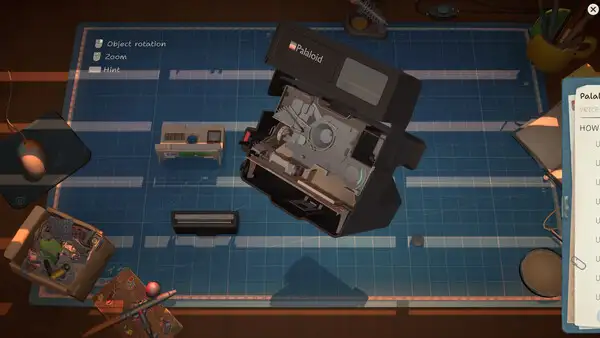
Where ReStory Saves Are Stored
The most commonly reported save location is:
C:\Users\[Your Username]\AppData\LocalLow\Mandragora\ReStory
Some installations instead use:
C:\Users\[Your Username]\AppData\Local\ReStory\Saved\SaveGames
Your progress — repaired electronics, earned money, unlocked tools, workshop upgrades and story progression — lives in these folders.
Press Windows + R, type %appdata%, hit Enter, then go up one folder to AppData. Open LocalLow (or Local if that's where your install puts it) and browse to the ReStory folder. If AppData is hidden, enable "Hidden items" in File Explorer first.
Backing Up Your Progress
Backing up takes a minute and can save hours:
- Close ReStory completely (a running game can write mid-backup)
- Copy the entire save folder to a safe location
- Keep a second copy on another drive or cloud storage if you can
- Restore by copying the backup back into the original location, replacing the damaged files
It's worth making a habit before every major patch — indie titles in their launch window (ReStory's first patch was already in progress at launch) occasionally introduce save-impacting changes. See the updates guide for the patch timeline.
Steam Cloud
ReStory supports Steam Cloud, so your save is synced to Valve's servers when Steam is online — a second safety net on top of local backups. Steam Cloud isn't a reason to skip manual backups, though: cloud sync can occasionally restore an older version after a reinstall if the local write raced the sync, and cloud saves don't help if you want to roll back a specific day.
Restoring After a Reinstall
If you reinstall Windows or move to a new PC:
- Install ReStory and let Steam Cloud pull your save (if enabled)
- If the cloud save is missing or wrong, paste your manual backup into the save folder path above
- Launch the game — your shop should be exactly where you left it
Why Local Saves Matter for This Game
ReStory's save design is simple (a local folder, Steam Cloud as backup), but the game's systems make the habit genuinely important:
- The daily loop is the progress — rent (2,000 yen/week), internet plans and order deadlines all compound; losing a week of saves means re-earning money and re-doing customer arcs.
- Choice state is in the save — the branching story (endings guide) tracks every conversation decision; an older backup is the only way to undo a choice without replaying.
- Patches are coming — the first patch was in progress at launch (updates guide); indie launch patches occasionally touch save-adjacent systems, and a backup costs nothing.
One copy on the same drive is fine for a same-day restore; a second copy on another drive (or cloud) survives drive failures and Windows reinstalls. Thirty seconds, once a week, covers every realistic failure mode.
FAQ
Where is the ReStory save file located? C:\Users\[Username]\AppData\LocalLow\Mandragora\ReStory is the most common path; some installs use C:\Users\[Username]\AppData\Local\ReStory\Saved\SaveGames. Both are verified by the community.
Does ReStory support Steam Cloud? Yes — Steam Cloud is enabled, so saves sync when Steam is online. Manual backups are still recommended for patch safety.
How do I back up my ReStory save? Close the game, copy the entire save folder to another location (ideally two copies on different drives), and restore by copying it back if anything goes wrong.
Related Guides
- ReStory Guide — Everything You Need to Know
- ReStory Updates & Patch Notes
- ReStory System Requirements
- Does ReStory Use AI Art? The Facts Behind the Controversy
- ReStory Mods — Trainers, Cheats & Custom Content
Official resources: Steam store page · Steam news hub · IGN game page · GOG store page Last Updated: August 12, 2026
More ReStory: Chill Electronics Repairs Guides
The ReStory: Chill Electronics Repairs mod scene — trainers like WeMod and PLITCH, cheats (money, time freeze), and the state of official modding support.
The complete ReStory: Chill Electronics Repairs repair system — disassembly, cleaning, diagnosis, soldering, painting, reprogramming, tool tiers and Zen Points.
Our ReStory: Chill Electronics Repairs review — 98% positive on Steam, a Metacritic 84, what it does brilliantly and the honest caveats before you buy.
Official ReStory system requirements: Windows and Mac minimums from the Steam page, plus what hardware actually matters for a smooth repair-shop session.
Every ReStory: Chill Electronics Repairs update — launch-day known issues (firmware bug, achievement unlocks), the first patch timeline and developer promises.
A practical ReStory: Chill Electronics Repairs walkthrough — opening script, weekly rhythm and the milestone order for tools, licenses and online orders.