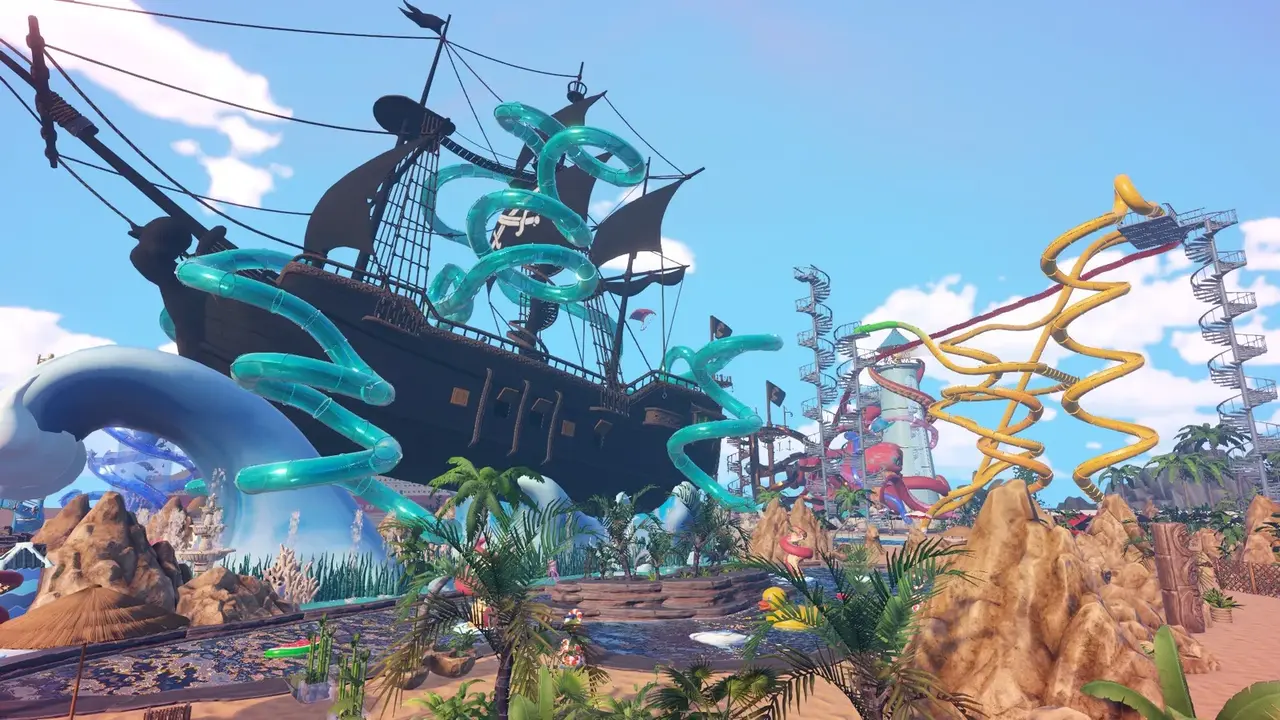
How Waterpark Simulator runs on Steam Deck: Proton Experimental setup, controller layouts, performance settings, FPS expectations, and known Deck issues.
Waterpark Simulator Steam Deck — Best Settings, Performance & Controls (2026)
Yes, Waterpark Simulator runs on Steam Deck, but it's not a locked-60-FPS showcase — it's a "workable with settings discipline" Deck game. There's no official Valve "Verified" stamp yet as of mid-August 2026, and the game launched without a native controller input at first, which forced Deck players to build their own Steam Input layouts. By now (1.0 is out since July 31, 2026) the community has settled on reliable Proton, layout, and performance recipes. This guide pulls them together.
Here's what you'll learn:
- Whether the Deck can handle it (and the honest performance ceiling)
- The Proton Experimental setup the community recommends
- Control layouts: Steam Input gamepad profile vs. trackpad-as-mouse hybrid
- Best settings for a stable 30-40 FPS on a busy park
- Known Deck issues and how to work around them
Official resources: Steam store page · Official Waterpark Simulator site · DeckFilter entry · Steam Community Deck thread
Steam Deck Compatibility Status
Waterpark Simulator has no official "Steam Deck Verified" badge as of August 2026. The Steam store page lists full controller support, but that refers to the gamepad build (which matters for PS5/Xbox), and early Deck owners found the Windows/Proton build shipped with no working controller input — they had to define a custom Steam Input layout from the WASD + mouse template. That's a real day-one Deck pain point, not a dealbreaker.
DeckFilter rates the game Playable with "Overwhelmingly Positive" Steam reviews. The community consensus: it runs well enough for daily park management, but you need to (1) force the right Proton, (2) build a control layout that maps the keyboard verbs to the Deck, and (3) accept a mid-range frame rate on busy parks.
Early reports were blunt: "there's no controller input on Deck, I had to make a custom layout." The game's first-person verbs — push, throw, hold-mop, sprint-toggle, crouch — all need binds. Expect to spend 10 minutes in Steam Input mapping actions to keyboard keys before it feels natural. See our PS5 controller notes for the underlying action names.
Setting Up Proton: Experimental Is the Community Default
Deck runs the Windows build through Proton. For Waterpark Simulator, the community overwhelmingly recommends Proton Experimental over stable Proton builds — players report smoother boots, fewer shader hitches, and better long-session stability on Experimental, especially after 1.0 content patches that touched Beach assets, water rendering, and night lighting.
To set it up:
- In Library on Deck (or Steam desktop managing the install), open Waterpark Simulator → Properties.
- Go to Compatibility and check "Force the use of a specific Steam Play compatibility tool."
- Select Proton Experimental.
- Make sure Proton Experimental is up to date (search "Proton" in your library, open it, and update).
- Launch once and let shaders compile — the first Beach load can hitch hard; don't judge performance mid-compile.
- After a major CayPlay patch, do a short test open before a long gaming night. If crashes persist, verify game files before hopping Proton versions randomly.
Higher Proton stability doesn't alter how the game plays: Always Run spirit still matters, bin arrows still need to face paths, and bracelet cheaters still need push intent. Learn the underlying keyboard verbs even if you play with Deck-bound controls.
Controller Layouts: Two Paths That Work
Deck players generally fall into one of two setups:
Steam Input gamepad profile. Treat the Deck like a console pad: left stick to move, right stick to look, a hold-interact for mop and hammer work, and separate push/throw binds. This is the friendliest if you're coming from console — but you must map the game's keyboard verbs onto pad bindings since the native build has no controller input out of the box.
Trackpad-as-mouse hybrid. Some managers prefer the right trackpad for aim throws and build-camera rotation, with the left stick for walking. This mirrors desktop mouse precision and is popular for the throw and mop-holding mechanics, but it demands a UI scale that keeps the bin-coverage rings readable.
Whichever you pick, practice the high-stress verbs before open hour: fill a trash bag and throw, hold-mop a puddle chain, rotate a bin in build mode, and push a cheater without dropping your tool. In co-op, call verbs rather than hardware ("throwing bag," "build mode," "mopping spine") so role splits work across platforms — see our multiplayer guide.
Best Performance Settings for a 30-40 FPS Deck
Deck game recommendations (from canirun.gg and community reports) land around medium-low at 800p, 30-40 FPS. The game recommends a GTX 1070 / RX Vega 56 class GPU on desktop, and the Deck's RDNA 2 780M-style graphics sit below that — so realistic expectations matter more than maxing sliders.
Settings that buy the most stable frame rate on a busy park:
- Resolution: 800p (1280x800) on Deck — 720p if you want a firm 40 FPS with plenty of guests.
- Graphics preset: Medium or Low. The tutorial lot runs on High, but busy parks with custom slides, Beach props, night lighting, and 2-4 co-op players stress the GPU far harder — that's the real benchmark, not menu FPS.
- Turn off or lower real-time water/reflections if the option exists; water rendering is a known load.
- Raise in-game UI scale (or the accessibility slider) until ticket summaries and research prompts are readable at arm's length on the 7-inch panel. Small HUD text and subtle puddle shaders are the biggest Deck usability killers.
- Just below that, bump brightness a touch for night mode — dark Pirate corners hide mess and bin coverage rings on the LCD panel.
A menu showing 60 FPS tells you nothing. Queue 60+ guests across two pools, a slide tower, and a food loop, then check your stutter. If you plan to open Beach map zones with night mode on, drop to Low graphics first — hindsight is the only thing more expensive than a lag-spike review crater.
Battery Life and Known Issues
Battery expectations depend on TDP and brightness, but a management sim like this is not a battery monster — expect roughly 2 to 3 hours on a mixed TDP profile for normal play, less if you push TDP and brightness for a busy night session. It's not the 30+ FPS-demanding crowd that's the battery problem; it's the constant guest AI and water rendering keeping the GPU awake.
Known Deck issues and their workarounds:
- No default controller input — solved with a custom Steam Input layout (the two paths above).
- First-load shader hitch — one-time; don't judge the game during Beach compile.
- Stutter when guest counts climb — lower resolution to 720p or graphics to Low; the same stutter appears on desktop, so it's not purely a Deck issue (see troubleshooting for the broader fixes: verify files, SSD storage, save management).
- Post-patch instability — verify game files before touching Proton versions.
Because the game has no Steam Cloud saves (confirmed by SteamDB — cloud saves are not listed), you cannot rely on Cloud to move a save between PC and Deck. If you play on both, you'll need to copy the save folder manually — our save file guide has the exact Windows path and backup steps.
Is Steam Deck Worth It for Waterpark Simulator?
Yes, if you're comfortable with a little setup. The game is genuinely more of a desktop-mouse game, but Deck owners who map a layout and use Proton Experimental report comfortable daily-management sessions. The honest tradeoff: it's Playable, not polished-on-Deck. You take a frame-rate hit on busy parks and you must invest in controls. If those are acceptable, the Deck turns the management loop into a couch game. For the underlying system, see our system requirements guide and the guide hub.
Frequently Asked Questions
Does Waterpark Simulator work on Steam Deck?
Yes — it's rated Playable, not Verified. With proton Experimental, a custom Steam Input layout, and medium-low settings, it runs comfortably for daily management, though busy parks drop toward 30 FPS.
Is Waterpark Simulator Steam Deck verified?
No official Valve "Verified" badge as of August 2026. Community and DeckFilter rate it Playable, and it takes a bit of setup (Proton + control layout).
What are the best Steam Deck settings for Waterpark Simulator?
Proton Experimental, 800p (drop to 720p if needed), Medium or Low graphics preset, high UI scale, and brightness up a touch for night mode. Target 30-40 FPS on busy parks.
Does Waterpark Simulator support controllers on Steam Deck?
The Windows/Proton build shipped without native controller input, so Deck players build a Steam Input layout. The store page lists full controller support for the console builds. Map the game's keyboard verbs to pad binds or a trackpad-mouse hybrid.
What Proton version should I use for Waterpark Simulator?
Proton Experimental is the community default — smoother boots, fewer shader hitches, and better long-session stability than stable Proton builds.
Related Guides
More Waterpark Simulator Guides
Waterpark Simulator mods: no official Workshop, but Nexus mods via BepInEx/MelonLoader — install steps, the 8-player mod, graffiti mod, and updates.
Waterpark Simulator money making: every income source, the tips multiplier, best layout principles, what to sell, and how to hit the $500K 5-star goal.
Waterpark Simulator multiplayer: online co-op up to 4 players, hosting and invites, lobby privacy, voice chat, permissions, and 8-player mods.
Waterpark Simulator PS5 guide: release date, price, PS Plus co-op, trophies, performance, mods and cross-save — how the console build differs from PC.
Waterpark Simulator research points: how to get them (smart people icons, water gun, tickets, maintenance), the research tree, and the best unlock order.
Waterpark Simulator review: Steam rating, critic consensus, pros and cons, performance and co-op verdict — is the $12.99 first-person park sim worth it?
Waterpark Simulator staff guide: every role (cashier, vendor, janitor, lifeguard), how to hire, staff overflow fixes, wages, and the best hiring order.
Waterpark Simulator system requirements: official minimum and recommended PC specs (CPU, GPU, RAM, 20GB), what hardware actually runs it, and Steam Deck notes.