IRON NEST Controller Support — Full Controller & Keybinding Guide (2026)
Does IRON NEST support controllers? Yes — full gamepad support on Steam (DualShock/DualSense included). Controller layout, keybinds, Steam Deck controls, and why mouse still wins for map plotting.
IRON NEST Controller Support — Full Controller & Keybinding Guide (2026)
Yes — IRON NEST has full controller support. The Steam store page lists full gamepad features, including DualShock and DualSense support — and the developers shipped controller/Steam Input improvements around launch. This guide covers what's supported, the best control setups, and where a mouse still beats a pad.
Here's what you'll learn:
- Controller support status (and which pads work)
- The control scheme: what maps to what
- Steam Deck controls and the touchpad advantage
- Mouse vs controller — the honest comparison
- How to set up custom keybinds

Official resources: Steam store page · IGN game page · Official site
Controller Support: What's Confirmed
- Full controller support is listed on the Steam page (not just "partial").
- DualShock and DualSense (PS4/PS5 pads) are explicitly listed — PlayStation controllers work natively.
- Steam Input is the bridge: Xbox, PlayStation, Switch Pro and third-party pads all work through Steam.
- The launch-era updates improved Steam Input support and gamepad layouts on Steam Deck specifically (per community reports and launch coverage).
- GOG/Epic versions: the game supports pads at the engine level; Steam Input features are Steam-specific.
Every interactive element — levers, dials, wheels, the map table, the coffee machine — is reachable on a pad. The game was built with a complete gamepad control map, not a half-hearted emulation layer.
The Control Scheme (What Maps to What)
IRON NEST's controls map the physical turret onto the pad:
| Action | Typical mapping |
|---|---|
| Look / camera | Right stick |
| Move / lean | Left stick |
| Interact (levers, dials, switches) | Face buttons / prompts |
| Turret rotation | Trigger + stick (hold to spin) |
| Elevation wheel | D-pad / trigger combos |
| Map table interactions | Left stick + face buttons |
| Pause / requisition menu | Start / back buttons |
The game uses context prompts at each station — you don't need to memorize a 40-button sheet; the station tells you what's available, and you can rebind everything in settings.
Steam Deck: The Touchpad Is Your Best Friend
On Steam Deck, the controls work out of the box after the launch-era improvements, but community consensus is clear: use the touchpad for map plotting:
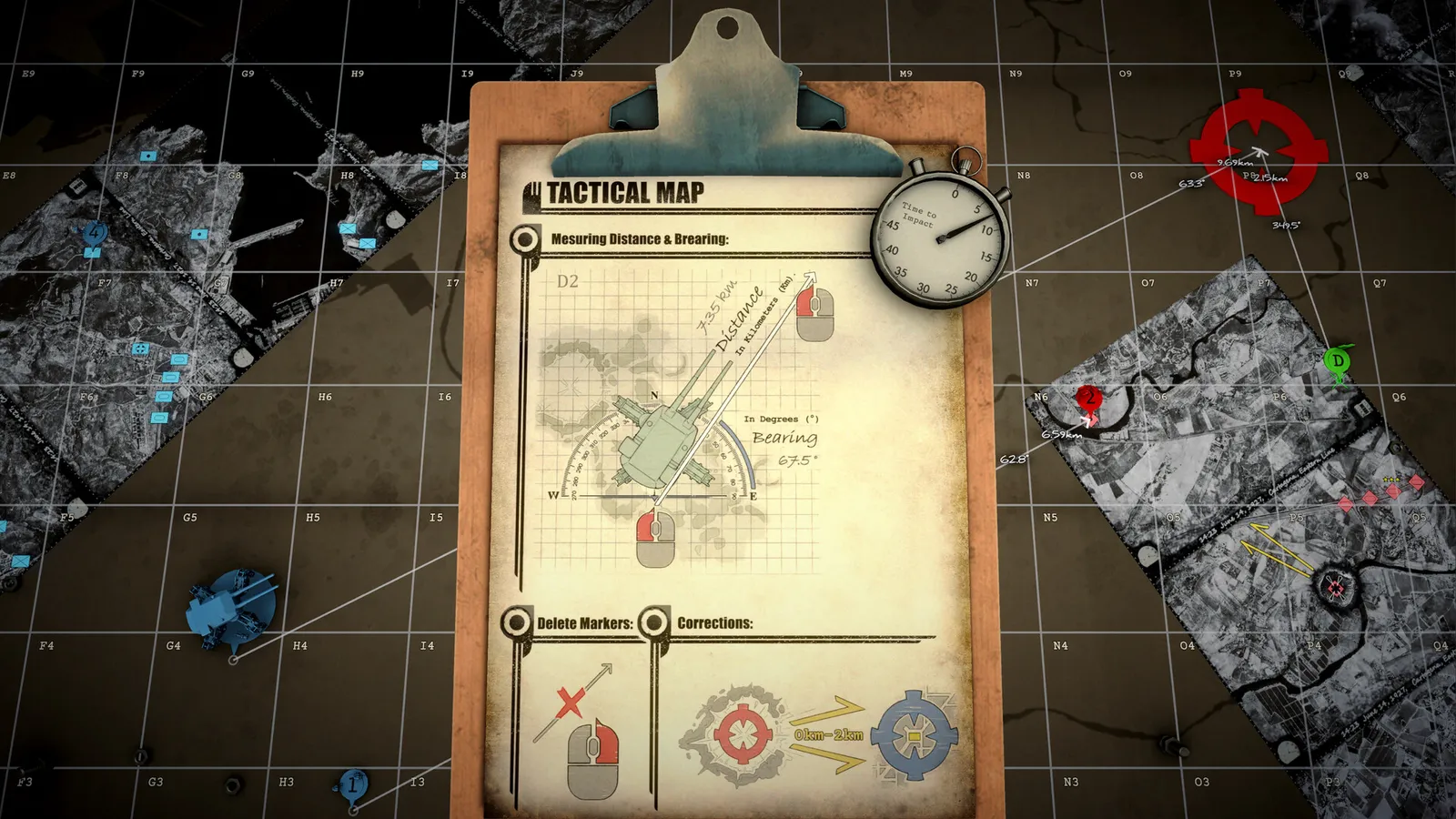
- Touchpad for precise coordinate marking, the drafting compass and bearing lines — a mouse-like surface that the sticks simply can't match for fine map work.
- Sticks for camera and general movement.
- Gyro (optional) for fine cursor control if you want it.
- Recommended bindings tweak: map the elevation/rotation to comfortable triggers since the deck's buttons are small.
IRON NEST's deliberate pacing suits a handheld session ("one mission on the couch"). Set 40 FPS for battery, plug in headphones for the radio chatter, and use the touchpad for plotting. See our Steam Deck guide for the full settings preset.
Mouse vs Controller — the Honest Verdict
| Task | Mouse | Controller |
|---|---|---|
| Map plotting / precision | ✅ Much better | ⚠️ Sticks are clumsy; touchpad helps |
| Levers/dials/switches | ⚠️ Click-heavy | ✅ Natural grab-and-turn |
| General comfort | ✅ | ✅ |
| Sitting back to play | ❌ | ✅ |
The honest answer: the game is fully playable on a pad (the devs built it properly), but precise map plotting still favours a mouse — that's why the official page notes it and why the Deck community leans on the touchpad. If you're going for gold medals on missions like Iron Road (20+ consecutive kills), a mouse gives you an edge on plotting speed. If you're playing relaxed on a couch, a controller is perfectly fine.
Custom Keybinds
- In-game settings → controls lets you rebind everything (keyboard and pad).
- Steam Input adds a second layer: per-button overrides, gyro, touchpad menus, and community layouts you can import.
- On Steam Deck, create a custom layout if the defaults feel off — the community has shared plotting-focused layouts.
After a game patch, your Steam Input layout can reset — re-apply your bindings if controls feel "wrong" after an update (see our update guide for the patch history).
Frequently Asked Questions
Does IRON NEST support controllers?
Yes — full controller support on Steam, with DualShock and DualSense listed specifically. Steam Input handles Xbox/Switch/third-party pads.
Does IRON NEST work with a PS5 controller?
Yes — DualSense support is explicitly listed on the Steam page, with full gamepad features.
What are the IRON NEST controls?
Context-prompt based: sticks for look/move, triggers for rotation/elevation, face buttons for interactions, with everything rebindable in settings.
Is IRON NEST better with mouse or controller?
Both are viable, but precise map plotting favours the mouse (or the Steam Deck touchpad). Controller is comfortable for relaxed play; mouse gives a plotting-speed edge for gold-medal runs.
How do controller controls work on Steam Deck?
Out of the box after launch improvements, with community-optimized layouts. Use the touchpad for map plotting precision.
Related Guides
- IRON NEST Achievements & Medals Guide — 33 Steam Achievements + Every Gold Medal
- IRON NEST Beginner's Guide — How to Play, Controls & First Missions (2026)
- IRON NEST Best Shells Guide — Every Shell Type Ranked by Mission (2026)
- IRON NEST Co-op & Multiplayer — Is It Multiplayer? Mods Explained
- IRON NEST Dead Reckoning — Mission 9 Walkthrough & Tear Shell Strategy
- IRON NEST Demo Guide — Is It Free, What's Included & How to Play